Using voice command

Discover all the ways voice command can make your life easier and help you find your favourite content.

How to dictate a voice command

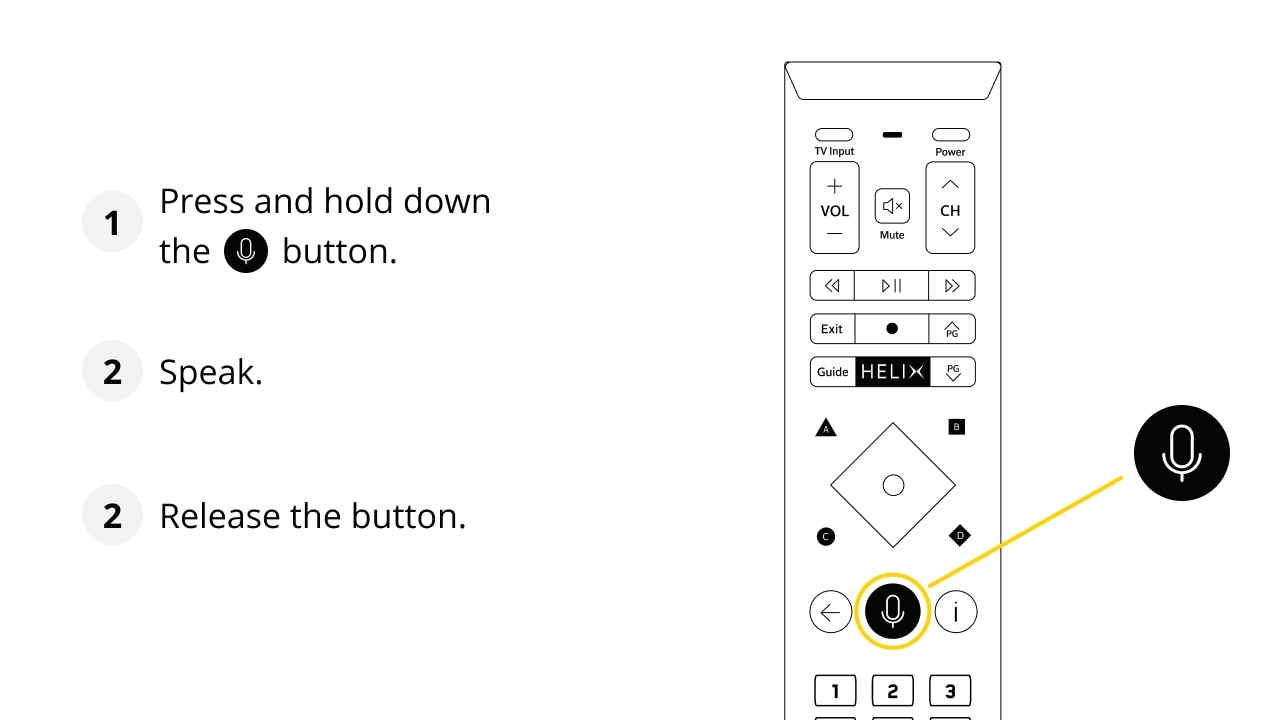
Press and hold down the Mic button. Speak. Release the button.
Star

The most useful voice commands

Here are some examples of popular and convenient voice commands. Use them as inspiration to navigate in the Helix universe!

“Recordings”

“Global” or “8”

Name a channel or its position in the Guide to access it.

See other examples of voice commands that lead to content.

“YouTube”

Name a viewing platform to access it.

See other examples of voice commands that lead to content.

“Fast-forward 4 minutes”

Skip ahead by a specific amount of time in a program to watch what really interests you.

See other examples of navigation voice commands.

“Record”

Start recording content while viewing.

“Weather”

Name an app to launch it and get useful information.

See other examples of app-related voice commands.

“Movies”

“What time is it?”

“Wi-Fi password”

Display your Wi-Fi network’s password

See other examples of voice commands for integrated features.

“Subtitles”

Are the buttons still useful?

Of course! Even though most actions are performed by voice command, the buttons on your remote control are still useful in several situations. Learn the purpose of the buttons on your voice remote.

Performance

Accessing content

  • On demand
  • Recordings
  • Global
  • Global on demand
  • illico+
  • Netflix
  • Movies
  • Kids movies
  • TV catch-up
  • 102
  • YouTube cat videos
  • Abbott Elementary
  • Matlock Season 1
  • NCIS: Origins Season 1, episode 4
  • Stingray Music
  • Hockey
  • Guide
  • Movie rentals
Integrated apps

Accessing apps and integrated features

  • Weather
  • What time is it?
  • Sports App
  • Bruins calendar
  • NHL
  • NFL
  • Alouettes
Image
icone settings

Change your terminal settings

  • Subtitles
  • Audiodescription
  • Bluetooth
  • Parental control

Frequently asked questions about using voice command

No. The microphone is only activated when you press and hold the Microphone button. The rest of the time, the remote is not picking up any sound.

Make sure you press the Microphone button down before speaking, hold it down while you speak, and release it after you’ve said the entire voice command. If the terminal still doesn’t understand your voice command after a few tries, check out our troubleshooting solutions for your remote.

Was this article useful?